Start here
Editing and styles
Media and content
Tutorials
Site and publishing
Layout and navigation
Forms and services
Ad Unit displays Google AdSense advertising on a published website. Set up the publisher account and website in AdSense, then configure the site-level publisher value and the individual ad unit in Sitely.
Open Site Settings and find the Google AdSense controls. Turn on Google AdSense and enter the Publisher ID used in your AdSense ad code, including the ca-pub- prefix. Google’s publisher-ID guide explains where to find it.
Use the account and site information issued by AdSense. Enabling the setting in Sitely does not approve your site or guarantee that Google will serve an advertisement.
Add Ad Unit from Insert or Add Element. Enter the Ad Unit ID from the AdSense code’s data-ad-slot value, then choose a format from the offered sizes.
The format chooser sets supported dimensions. Review the placement on each device layout and choose a size that fits the available width. Keep surrounding content clear of the ad area.
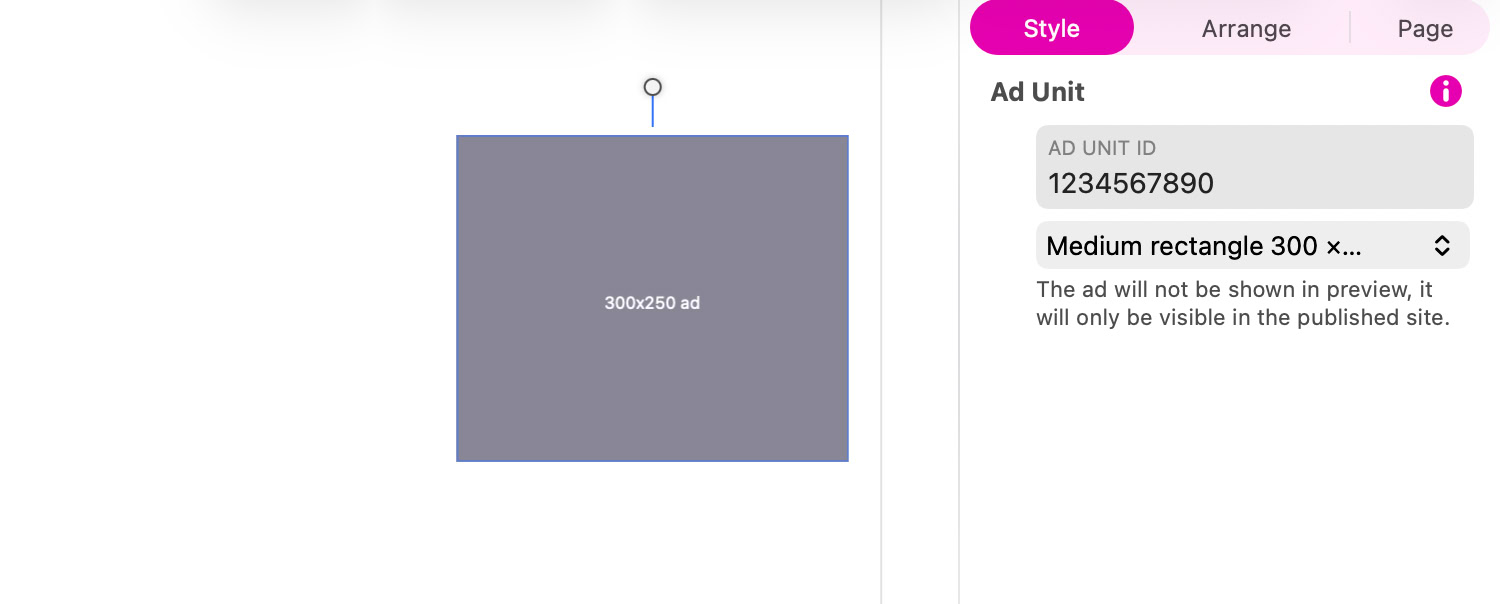
The Ad Unit ID and format chooser, with a placeholder for a 300 by 250 unit. The identifier shown is an example, not a value to copy into your site.
An ad placeholder in the editor or Preview is expected. The ad is requested on the published site when the site-level settings and unit identifier are configured. A successful publication still does not guarantee an ad will be returned.
If the area is empty, check the publisher value, Ad Unit ID, format, account/site status and any browser content blocker. Consult AdSense’s current guidance before treating every empty ad area as a layout problem.
Configure the relevant Sitely Privacy controls and review Google’s current publisher consent requirements. Sitely’s banner and provider-activation settings do not by themselves establish that every AdSense requirement is configured.
Test the page’s layout and consent states on the intended hosting setup. Keep ad-account configuration, provider messages and site settings consistent, and follow Google’s instructions for checking your implementation.
Please report any shortcoming in this documentation and we’ll fix it as soon as possible!
Updated for Sitely 8

Powerful and refreshingly simple, at home on Mac, finding new freedom on iPad.
Always on. Keeps the site working.
Enables optional features.
Remembers your settings.
Counts visits and page views.
Tailors ads to your browsing.
We and our partners use optional cookies for extra features, saved preferences, visit counts and personalised ads. To change your choices later, use Cookie settings in the footer.
Closing keeps optional cookies off. Privacy policy