Start here
Editing and styles
Media and content
Tutorials
Site and publishing
Layout and navigation
Forms and services
Calendar can display an iCalendar feed or embed a scheduling or property-availability service. Choose the source for the task: show events, let visitors arrange a meeting, or display a rental property’s availability.
Add Calendar from Insert or Add Element and choose its provider in the Style inspector. The available options are iCal (iCloud/Google), Calendly Meeting, Sign In Scheduling and Houfy Property Availability.
Choose iCal (iCloud/Google) and paste the calendar’s iCalendar feed address into iCal / Webcal URL. Obtain the feed from the calendar service’s sharing settings. Google Calendar calls its public feed Public address in iCal format.
Use a calendar whose contents are intended for your website’s visitors. Avoid a personal calendar’s secret feed link. The displayed calendar is read-only; editing events or booking time happens in the source service.
Select By Day, By Month or List. The controls offered depend on the layout: review navigation, displayed days and hours, Week Start and Show Current Month where available. List Layout on Mobile provides a compact presentation on narrow screens.
Style the background, headings, grid, today highlight and events. Label can show Event Description or a Fixed Label, and Time can use a 12-hour or 24-hour format. A fixed label changes presentation; it does not make the source calendar private.
Published iCal calendars use a PHP helper to read the feed. Your hosting must execute PHP and allow outgoing requests to the calendar address. Preview can display feed data in the editor, but a static local export does not test the server-side helper.
Check recurring and all-day events, time zones, navigation and the mobile layout. If the calendar is unavailable, verify the feed’s sharing settings, the URL and the host’s ability to fetch it.
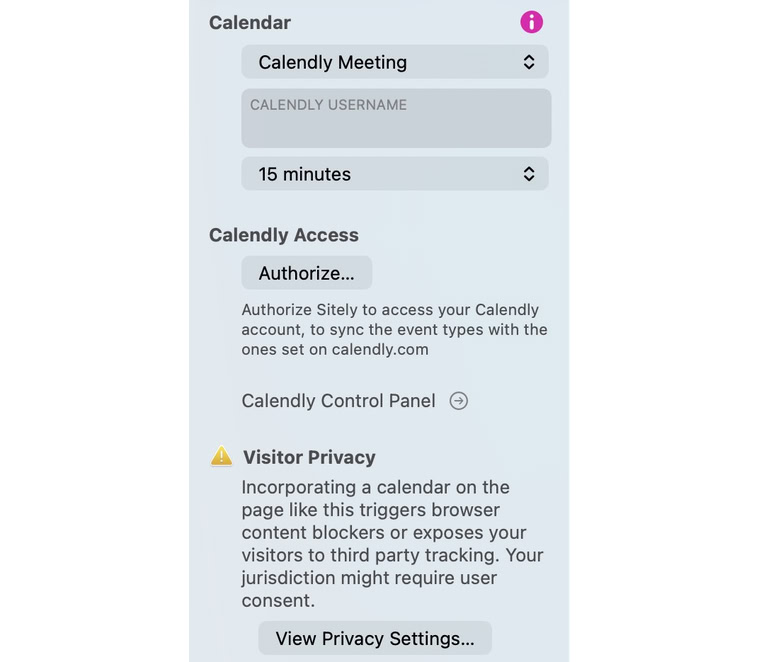
Choose Calendly Meeting and enter the Calendly Username when requested. Configure the public scheduling page and event types in Calendly.
Use Authorize… under Calendly Access to let Sitely synchronize the account’s event types. Select an event type or Visitor Choice. Authorization may need to be repeated on another device; the inspector explains when event types were synchronized elsewhere.
Check availability, duration and the visitor’s time zone in the actual booking flow. Calendly’s account settings determine which appointments can be scheduled. See the current Calendly embed guide.
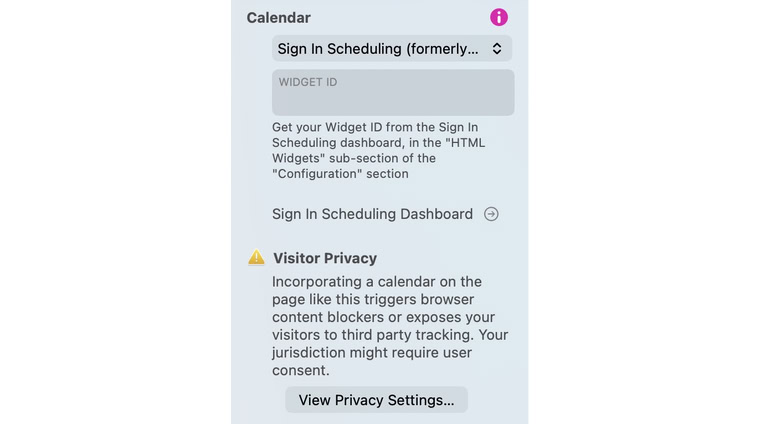
Choose Sign In Scheduling (formerly 10to8.com) and enter the Widget ID supplied by the service.
The current provider guide places HTML widgets under Manage > Booking Process > Booking Widgets. Locate the identifier in the generated widget code and use it in Sitely.
Manage services, appointment rules and availability in the provider dashboard. Test the intended service and the next booking step on the published page.
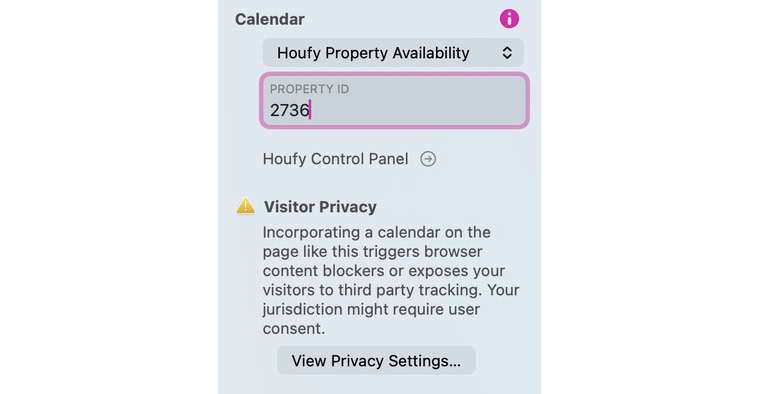
Choose Houfy Property Availability and enter the Property ID. To offer reservations as well, add a Property Booking element for the same listing.
Houfy supplies the availability and any listing restrictions. Confirm its current widget and account requirements, then review the calendar and booking tool together.
For external scheduling and booking widgets, review Site Settings > Privacy and test the relevant consent and content-blocking choices. Keep a normal scheduling-page or property link available when an embed cannot load.
A visible widget is only the start of verification. Check the correct account, listing or event type, the dates and time zone, and the provider’s completion steps. Changing the Sitely design does not configure or synchronize the provider account.
Please report any shortcoming in this documentation and we’ll fix it as soon as possible!
Updated for Sitely 8

Powerful and refreshingly simple, at home on Mac, finding new freedom on iPad.
This website makes use of cookies.
Please see our privacy policy for details.