Start here
Editing and styles
Media and content
Tutorials
Site and publishing
Layout and navigation
Forms and services
A Cinematic Gallery starts as a small photo cover on the page. When a visitor opens it, the photos become an animated presentation inside the browser window or in fullscreen.
Add a Cinematic Gallery and set Source to Images. Add and reorder the photos in the image collection. Give each photo an Image Description. Crop a selected photo to change its framing without altering the original file. The cover and the opened viewer use the same photos.
In Cover, choose Stack, Fan or Ribbon. Visible Photos sets how many photos the cover shows, from two to five. Use Spread, Photo Border, Photo Rounding and Shadow to style them.
Stack also offers Tidiness and Arrangement. Try Shuffle Arrangement, or keep the arrangement number to reproduce a look. Set a Stack Angle for an individual photo or choose Automatic Angle to restore the calculated angle.
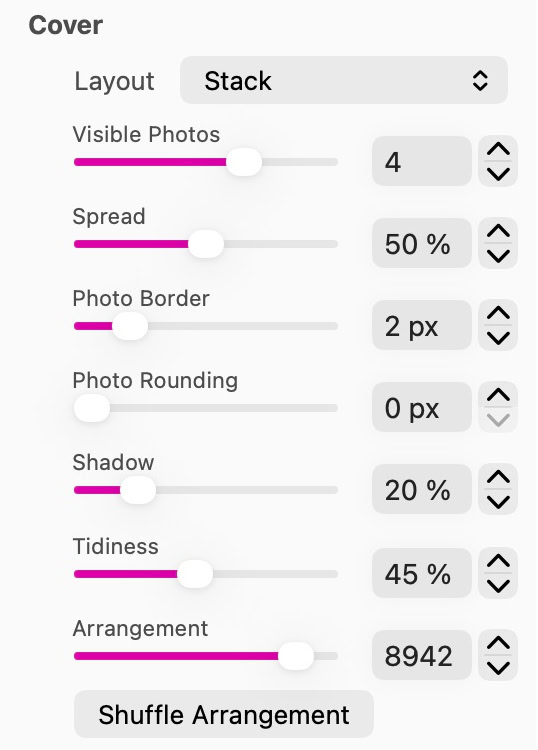
Cover controls set the layout, visible photos, spacing and print appearance.
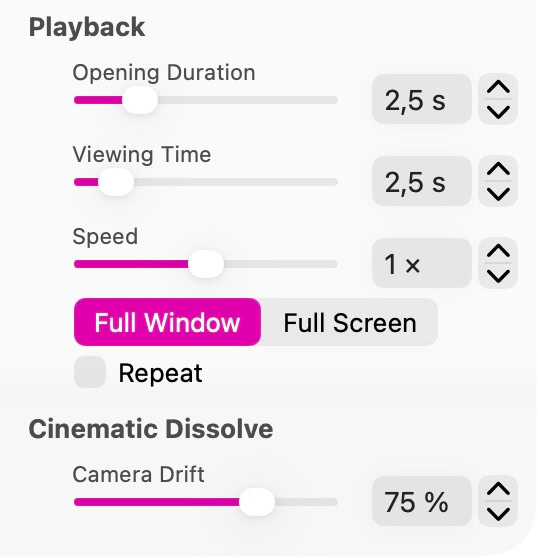
Playback controls set timing, speed, viewing mode and repetition.
Choose an Effect for the opened viewer. Floating Archive and Photo Constellation offer Depth and Depth Blur. Orbital Exhibition adds Orbit Radius and Camera Rise. Turning Pages adds Page Curl, Page Turn and Framing. Select the effect first to see the controls for it.
In Playback, use Opening Duration for the transition into the viewer, Viewing Time for how long each photo is held, and Speed to adjust playback. Turn on Repeat to play the collection again.
Full Window keeps the viewer inside the browser window. Full Screen requests fullscreen when the visitor opens the gallery. Test the entire sequence when the collection mixes landscape and portrait photos.
Open the page in Preview, click the cover and move through the collection. Close the viewer with its controls or Escape. Check that the cover remains easy to identify and open at each published width.
Open the photo stack to see the slideshow. Use the viewer controls to browse the photos or close the presentation.
Please report any shortcoming in this documentation and we’ll fix it as soon as possible!
Updated for Sitely 8

Powerful and refreshingly simple, at home on Mac, finding new freedom on iPad.
This website makes use of cookies.
Please see our privacy policy for details.