Start here
Editing and styles
Media and content
Tutorials
Site and publishing
Layout and navigation
Forms and services
Add a labeled text input, choose an input type, and set validation and formatting.
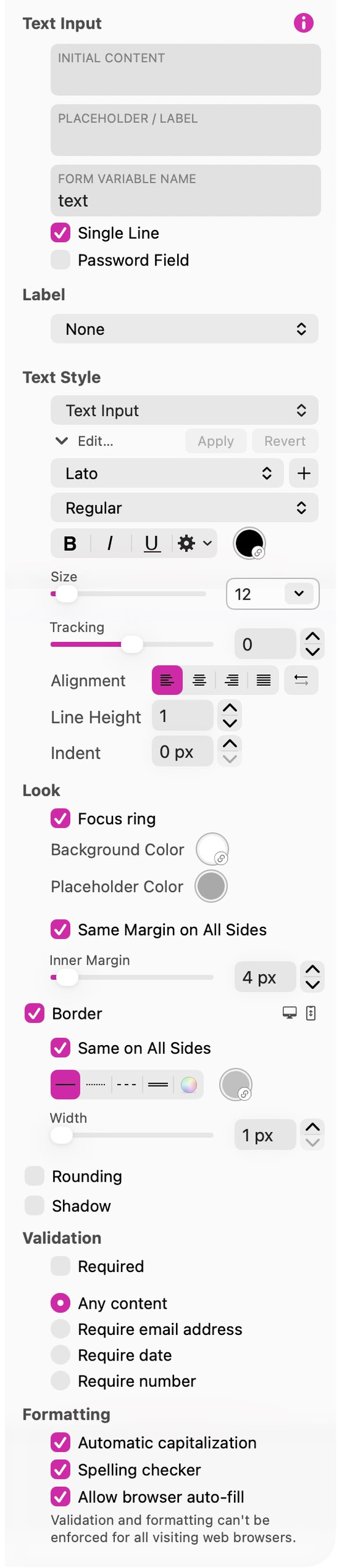
Text Input sets an initial value that can be submitted if the visitor leaves it unchanged. Placeholder is a hint shown while the field is empty. Give the field a visible label and select its label or floating-label option in the inspector so assistive technology can identify it.
Form Variable Name identifies the value in the submitted data and in Calculator smart fields. For example, name a field first_name to recognize the visitor’s first name in the results. Use a separate name for each independent field.
Use Single Line for short entries such as a name or email address. Turn it off for a longer message. Password Field masks the display with dots while preserving the entered value. Use that setting in a suitable login workflow.
Use Validation to require a value or specify the kind of input expected. Check the error message and test an empty or invalid entry in Preview. Formatting controls can set capitalization, spell checking and autofill.
Style the input and its placeholder, and keep its focus ring visible so visitors can tell which field is active. Test labels and keyboard navigation alongside the visual appearance.
Use Save Preset in the Style inspector to reuse this appearance on another control of the same type.
See Forms for configuring submission and delivery.
Please report any shortcoming in this documentation and we’ll fix it as soon as possible!
Updated for Sitely 8

Powerful and refreshingly simple, at home on Mac, finding new freedom on iPad.
This website makes use of cookies.
Please see our privacy policy for details.