Start here
Editing and styles
Media and content
Tutorials
Site and publishing
Layout and navigation
Forms and services
Set a numeric range, read the selected value, or connect a slider to an animation.
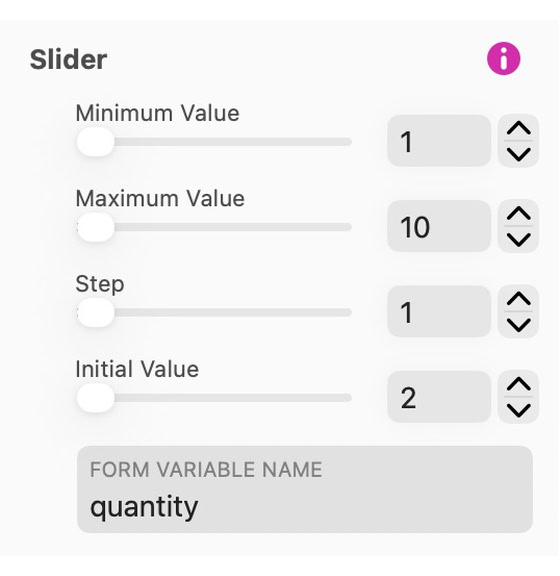
Set the minimum, maximum, step and initial value in the Style inspector and give the slider a variable name. The example below lets a visitor choose a quantity from 1 to 10, starting at 2.
Quantity
The values are set up in the style panel by setting the minimum value, the maximum value, the step and the initial value of the slider. We also give the slider a form variable name, in this example we use the variable quantity. When the form is submitted, the email will show the variable name, followed by the value selected by the user. It will look something like quantity: 2.
In order to display to users what quantity has been selected, we would also add a text box to the right of the slider to show the quantity selected. This is achieved by using a Smart Field in the text box, you’ll see the option in the style panel when your text box is selected on the canvas, it looks like this.

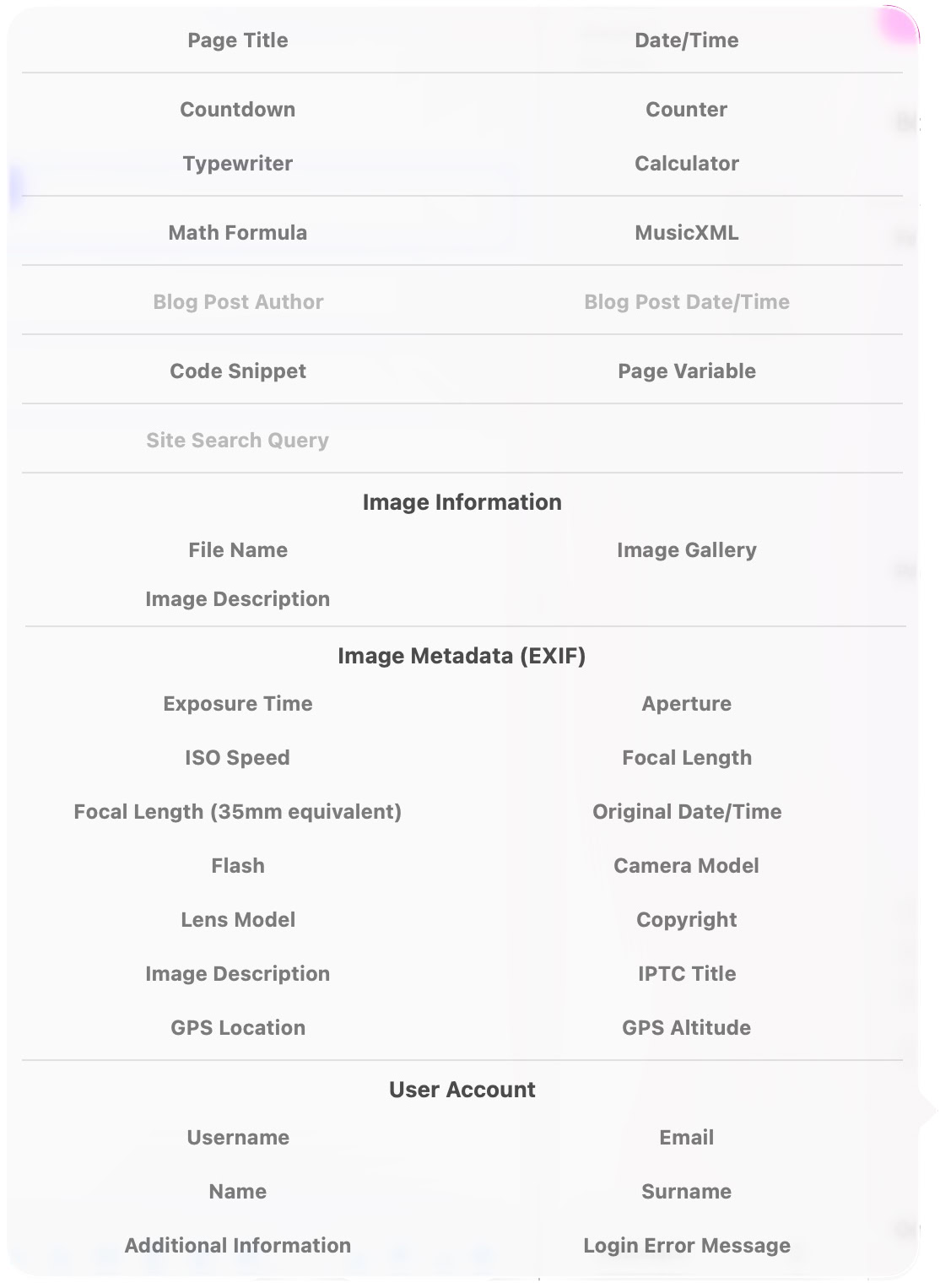
When you insert a smart field, you will be presented with a panel of options. In this instance, the option we want is Calculator. This will place a calculator smart field into the text box, it looks like this.

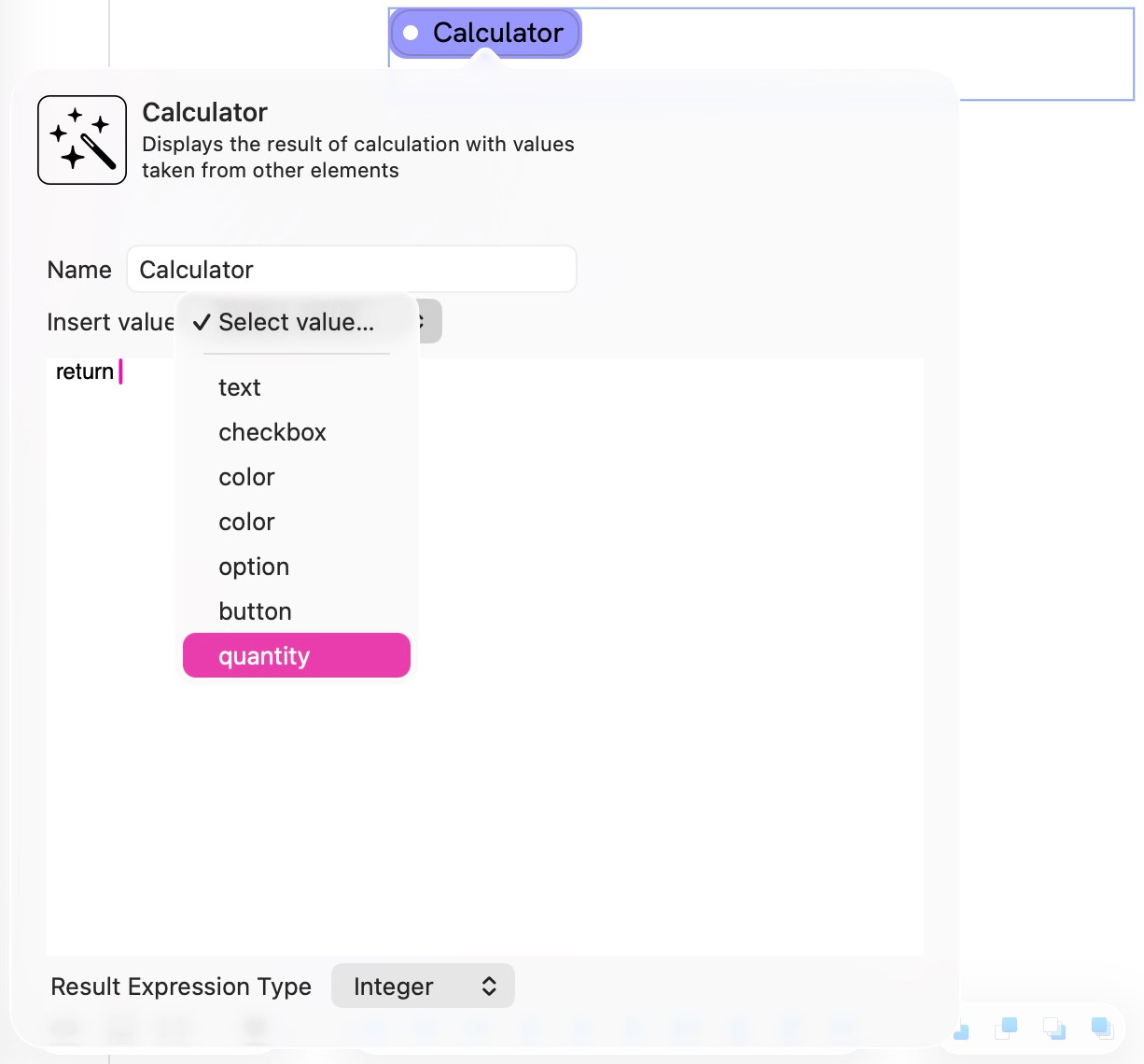
Click on the calculator smart field to set its value. To help you, Sitely looks at your page and finds all the available variables that you can use in your calculated field. In this case, Sitely found our variable quantity attached to the slider. This is the value we need to display next to the slider, so that’s the option chosen. Now, as the slider is moved, the appropriate value is displayed to the user.
Note: We have a whole section in the user documentation for smart fields and their usage. We’ve only deviated to the topic here to show the relevance of smart elements in the context of this particular form element.
A slider can control progress in a Lottie animation or a 3D model animation. Add the slider and the animated element to the same page. Select the animated element, enable its slider control and choose the Slider in the inspector. Use Reverse Direction to invert the progress. See Lottie Animations and 3D Model.
Use Save Preset in the Style inspector to reuse this appearance on another control of the same type.
See Forms for configuring submission and delivery.
Please report any shortcoming in this documentation and we’ll fix it as soon as possible!
Updated for Sitely 8

Powerful and refreshingly simple, at home on Mac, finding new freedom on iPad.
This website makes use of cookies.
Please see our privacy policy for details.