Start here
Editing and styles
Media and content
Tutorials
Site and publishing
Layout and navigation
Forms and services
Use Variants to change what a button or group looks like when something happens on the page. A button can show a different label while a player is playing, and a group can change when a popup opens.
Base is the starting appearance. Select a button or an ordinary group and open Variants in the Style inspector. Enable Variants for a group, then choose Add Variant. Name the variant and choose Edit Condition. If the condition asks for a source, select the element it should follow.
Conditions depend on the source. You can follow player playback or mute status, a gallery slide, a checkbox or field value, form validation or submission, a popup or layout block, the color theme, or a named page state. Conditions that compare a value show the relevant comparison controls.
The condition selects the variant. Its Default, Hover and Pressed appearances control the feedback a visitor sees while using it.
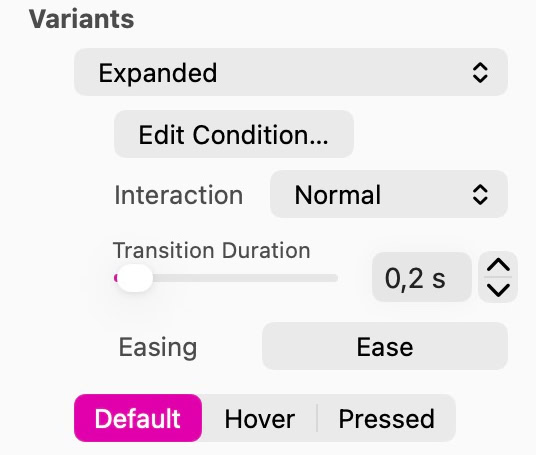
A variant has its own interaction behavior, transition and feedback appearances.
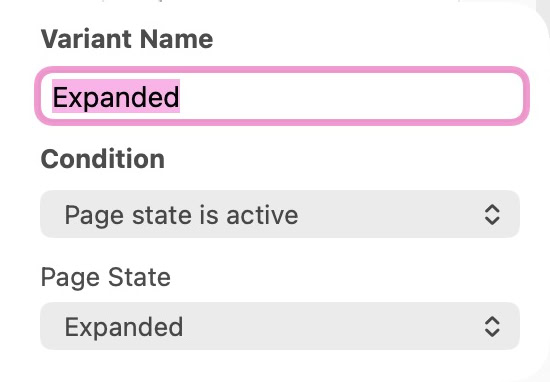
Edit Condition connects this example variant to the Expanded page state.
Choose the variant and select Default, Hover or Pressed. Automatic uses Sitely’s built-in feedback. Choose Custom to edit the button’s artwork and text for that appearance. Interaction can be Normal, Disabled or Hidden. Keep instructions and essential controls accessible on touch screens, where visitors cannot hover.
Choose Edit Variants and select the variant and feedback appearance in the floating toolbar. Select a member of the group to edit its offset, rotation, scale, opacity or visibility. These overrides preserve the group’s ordinary layout.
Set Delay, Duration and Easing for each member. Choose Done or End Editing Variants to return to normal editing. Reset Variant Overrides removes the selected member’s changes, including timing and intermediate keyframes.
For a Details button, set the click action to Page State Control and add a state named Expanded. Choose Toggle to switch it on and off. Set the button and illustration group variants to Page state is active and select Expanded. One click can now change both appearances. Use Activate or Deactivate when the action should always set the state to a specific value.
Open Animation Timeline while editing a group variant. The square endpoints follow the starting and destination appearances. Add intermediate keyframes to shape the motion, then test the click and its resulting appearances in Preview.
Please report any shortcoming in this documentation and we’ll fix it as soon as possible!
Updated for Sitely 8

Powerful and refreshingly simple, at home on Mac, finding new freedom on iPad.
This website makes use of cookies.
Please see our privacy policy for details.