Start here
Editing and styles
Media and content
Tutorials
Site and publishing
Layout and navigation
Forms and services
Build and style a dropdown, import choices, and set an action for a selection.
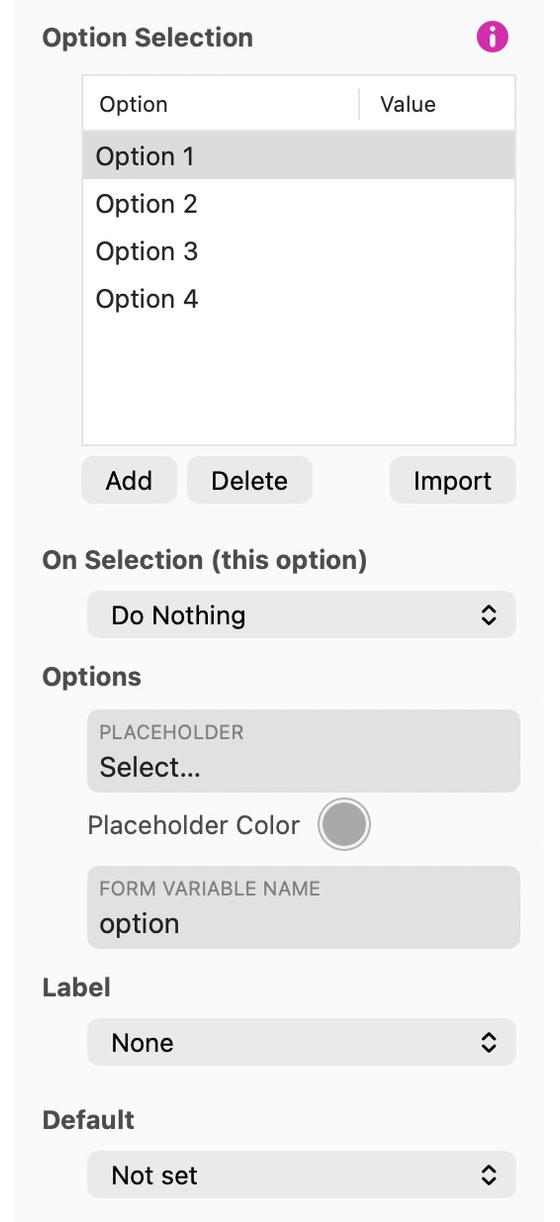
Add choices with Add in the Options list and edit each label. Set an optional Value for the submitted result or a calculation. When no value is specified, the label supplies the result. Use Import to load a plain-text list, such as the countries in the example below.
Use Image to choose the dropdown indicator, including a Custom image. Set Options Menu to Custom to style its background, text, border, corner radius and shadow. You can also set row padding and maximum height, plus separate colors for the highlighted and selected options.
Country
If you would like to try this for yourself, here is a download link for a countries text file.
The On Selection option is similar to the On Click option of buttons and other links: you can pick an action to perform when the specific option is selected, making the option selection element behave like a menu, or disclosing a layout block or popup containing additional form fields.
Use Save Preset in the Style inspector to reuse this appearance on another control of the same type.
See Forms for configuring submission and delivery.
Please report any shortcoming in this documentation and we’ll fix it as soon as possible!
Updated for Sitely 8

Powerful and refreshingly simple, at home on Mac, finding new freedom on iPad.
This website makes use of cookies.
Please see our privacy policy for details.