Erste Schritte
Medien und Inhalte
Tutorials
Website und Veröffentlichung
Layout und Navigation
Formulare und Dienste
Anleitungen
A Fixed in Window image stays in place in the browser while a box on the page acts as a moving window over it. This creates a simple parallax-like effect without animating the image itself.
Scroll past the botanical panel below to see the crop change as its window moves. The diagram that follows separates the moving page from the image behind it.
The page and its image window move as you scroll.
The background image stays fixed in the browser behind that window.
Add a Box and choose an image for its content. In the Style inspector, enable Fixed In Window. Use the box’s position and size to define the visible window, then choose the crop and image framing.
Preview while scrolling past both ends of the box. Check the image at the browser widths you intend to support; its visible crop depends on the window and viewport.
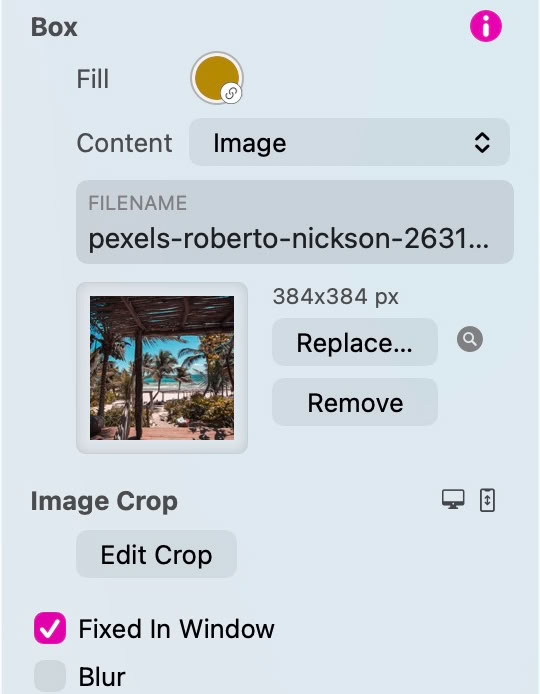
A Wide Box or Layout Block can use the same technique. Set an image as its background, enable Fixed In Window and let the background span the browser width. Keep text and controls in a clear content column above it.
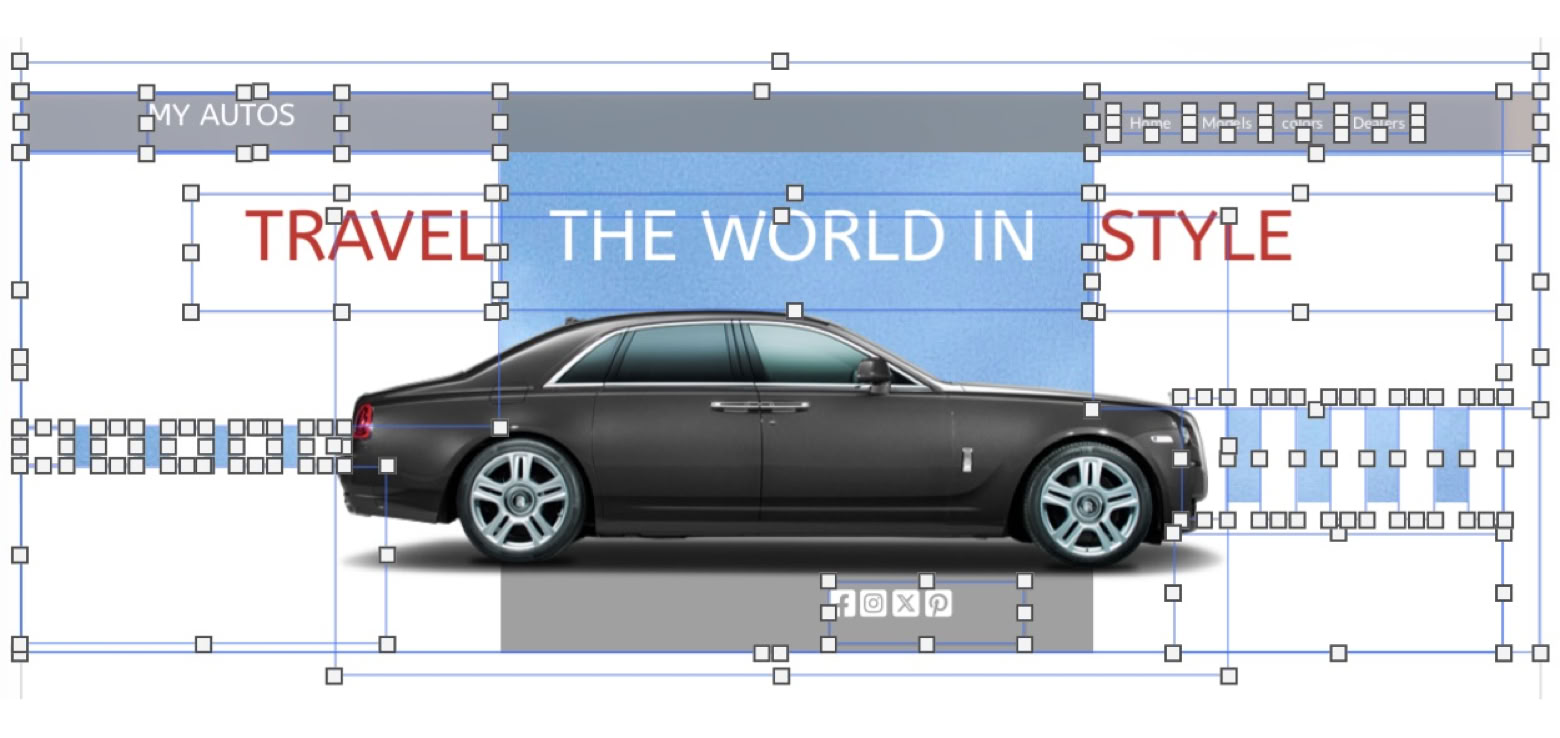
In this example, foreground boxes mask parts of one fixed image. A navigation bar, headline, social icons and a transparent PNG of the car complete the composition. Scroll through it to see which parts remain in the page flow.
MEINE AUTOS
REISENS
DIE WELT DES
STIL
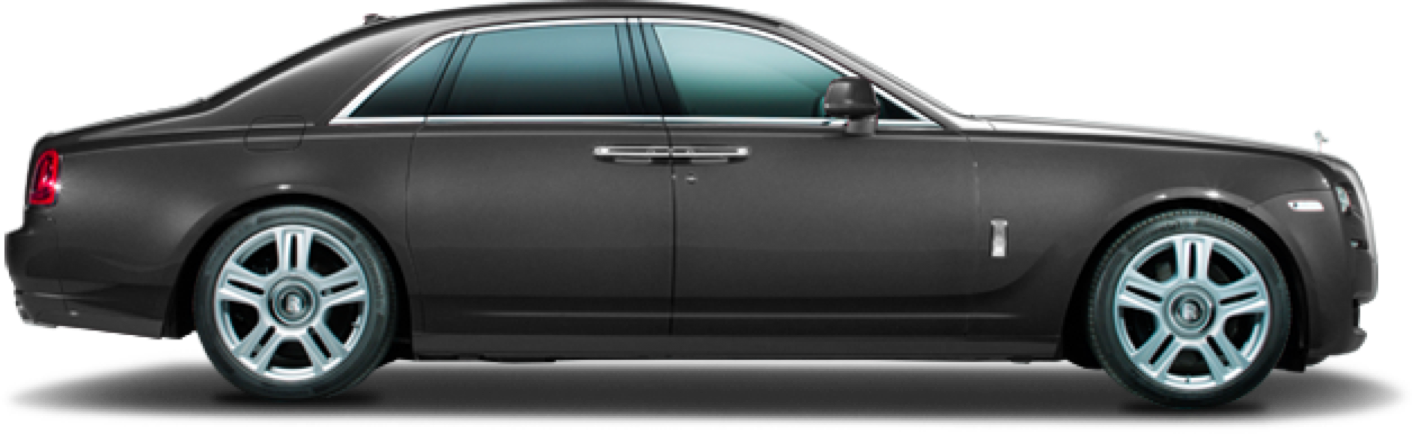
The canvas view below shows the overlapping elements. Keep each mask and foreground object aligned intentionally; an image fixed in the browser does not move together with the foreground boxes.
Select the foreground element and use Add Animation → Animate While Scrolling, then Rotation / 3D to configure its rotation and perspective. For pointer-driven motion, choose Animate On Hover → Rotate and a 3D Tilt or 3D Twist animation. These transform the element itself; Fixed In Window changes how a background relates to the page.
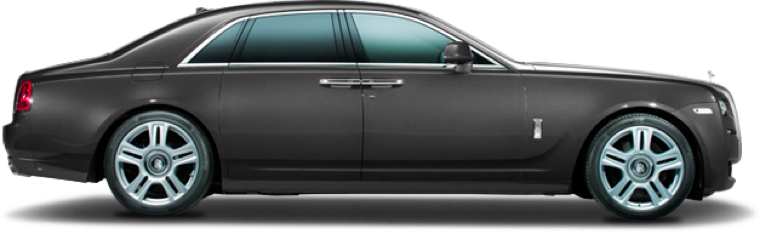
For a precisely keyed alternative, animate Rotation X, Rotation Y and Rotation in a timeline and give its activation a While Scrolling trigger. The car below uses that method. Scroll past it and back to move between the two angles.
Use modest angles and leave enough space around transformed elements. Keep the message and controls usable in the static reduced-motion appearance. Test fixed backgrounds, scrolling and pointer behavior in Preview and in the browser. See Animation, Keyframes and Timelines and Accessibility.
Bitte Bericht alle Mängel in dieser Dokumentation und wir werden es so schnell wie möglich beheben!
Aktualisiert für Sitely 8

Leistungsstark und erfrischend einfach, zu Hause auf dem Mac, neue Freiheit auf dem iPad zu finden.
Always on. Keeps the site working.
Enables optional features.
Remembers your settings.
Counts visits and page views.
Tailors ads to your browsing.
We and our partners use optional cookies for extra features, saved preferences, visit counts and personalised ads. To change your choices later, use Cookie settings in the footer.
Closing keeps optional cookies off. Privacy policy